If you use Google Chrome browser often, you must have seen the words Search Google or type a URL in the address bar. It looks simple, but that small box can do much more than searching Google or opening a website. Some times is called Search or Type Web Address instead of Search Google or type a URL. Is still the same thing.
The good thing is that you can use it to search the web, visit websites directly, perform quick calculations, find specific information, search for images, and even use advanced search techniques to get better results faster.
If your still wondering what this simple term means whenever you open your browser, dont worry because i am going to explain everything you need to know about Search Google or type a URL. What it means, how to use it effectively, how to customize it, and how to get more out of your browser’s address bar.
If your into seo and digital marketing check this out: How SEO Experts Use People Also Search For to Rank Higher.
What Is Search Google or Type a URL?
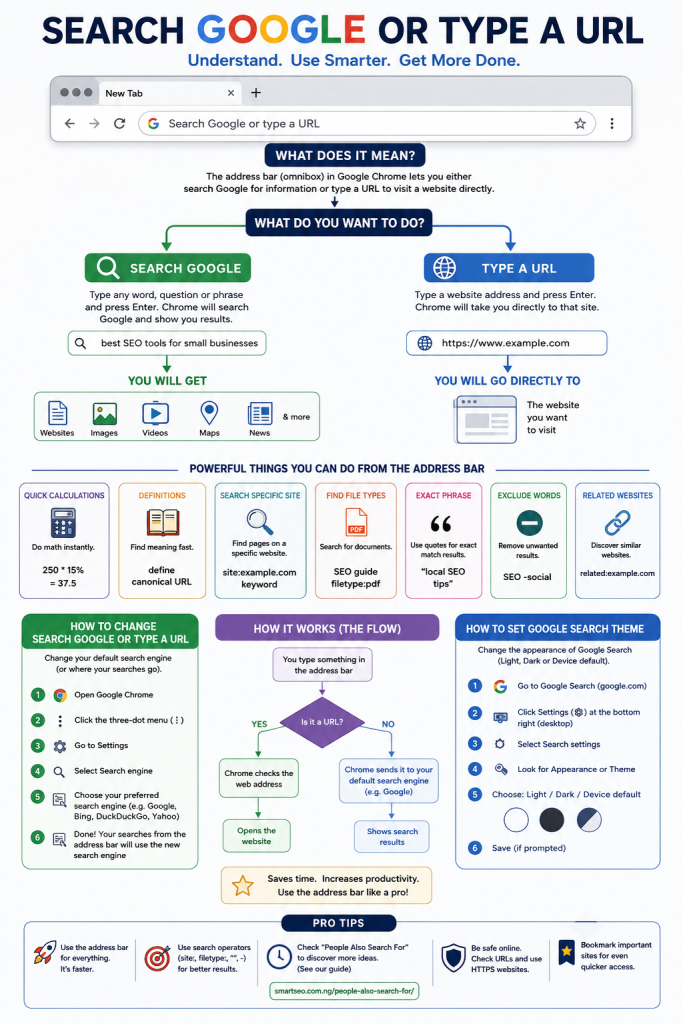
Search Google or type a URL is the default message displayed in the address bar, also known as the omnibox, in Google Chrome and some other browsers.
What this message means is that you have two main options for searching the web:
- Search Google by entering words, questions, or phrases.
- Type a URL to go directly to a website.
For example, if you type:
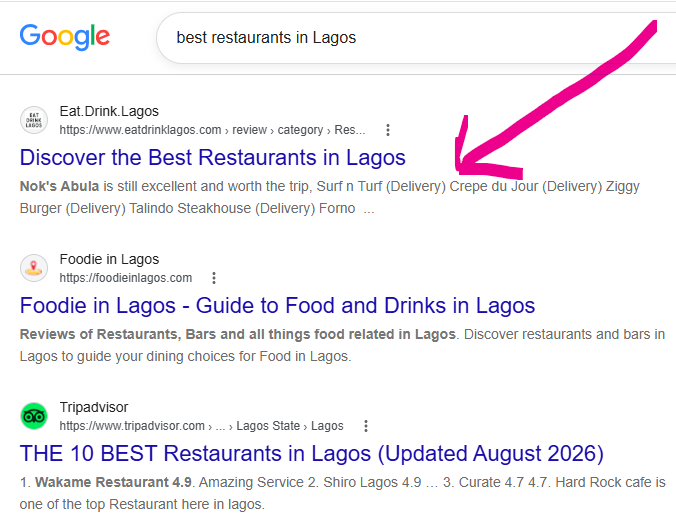
best restaurants in Lagos
Chrome will send the query to your default search engine and display search results as shown bellow.
But if you type:
www.smartseo.com.ng
Chrome will take you directly to Google’s website. The address bar therefore works as both a search box and website address field.
What Is the Difference Between Searching Google and Typing a URL?
Difference between searching Google and typing a url is mainly what you want Chrome to do with what you enter.
Searching Google
Lets say you enter a search query such as:
best SEO tools for small businesses
Chrome treats it as a search query and sends it to your selected search engine. You will receive a search results page containing websites, images, videos, maps, news, and other relevant information.
But when you,
Type a URL
A urlL is the web address of a particular page. When you type it on the browser bar it take you direct the website.
For example:
When you enter a complete url, Chrome will open that website directly rather than searching for it. If you understand this, it will save you time anytime you want toaccess the web.
If you already know the website you want to visit, typing its URL is usually faster than searching for the website on Google first.
How to Use Search Google or Type a URL Like a Pro
The Chrome address bar is much more powerful than many users realize.
Here are some practical ways to use Search Google or Type a URL Like a Professional.
1. Search Google Directly
The simplest use is entering a question or keyword.
For example:
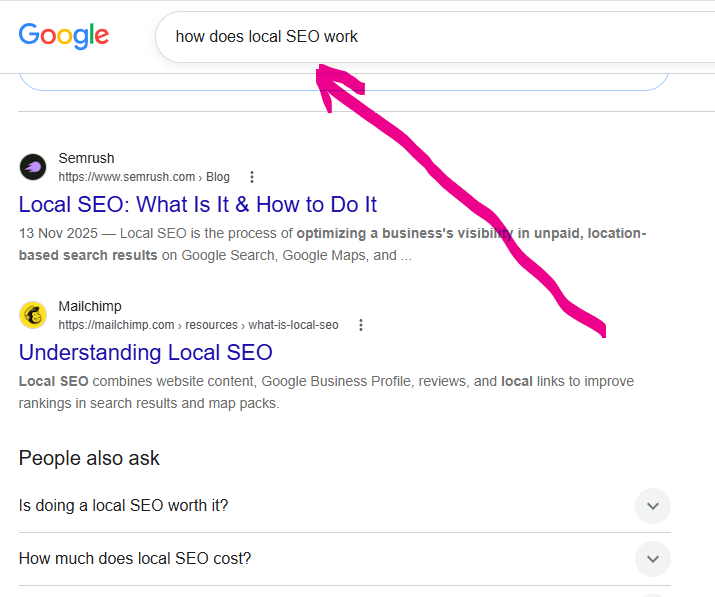
how does local SEO work
When you press Enter, Chrome will display Google’s search results as shown bellow.
You don’t need to visit Google first. This is especially useful when you’re researching a topic and want to move quickly between searches.
2. Visit a Website Directly
If you know the website’s URL, you dont need to search for it again, just enter it into the address bar.
For example:
When I type www.smartseo.com.ng on the chrome address bar it take me to smartseo.com.ng homepage as shown bellow:

When you press Enter, and Chrome will attempt to open the website instead of searching for it.
3. Search for Specific Phrases
Putting quotation marks around a phrase can help you find pages containing that exact wording.
For example:
“search Google or type a URL”
This can be useful when researching how a specific phrase is used online. It is also helpful for SEO research, competitor analysis, and content research.
4. Use the Address Bar for Calculations
You don’t always need to open a calculator get get the right answer for your calculation.
For example try entering:
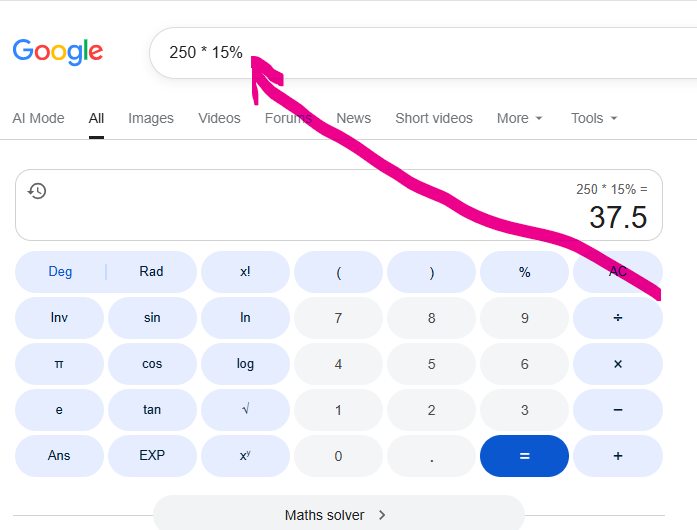
250 * 15%
Chrome will provide the result directly as shown bellow.
You can also perform basic mathematical operations such as addition, subtraction, multiplication, and division. For quick calculations, this can be much faster than opening another application.
5. Search for Definitions
If you want to quickly understand a word or concept, type something like:
define canonical URL
Google will provide a definition and related information directly in the search results.
This is particularly useful when you’re researching technical subjects.
6. Search for Specific Websites
You can use Google’s site: search operator to find pages from a particular website.
For example:
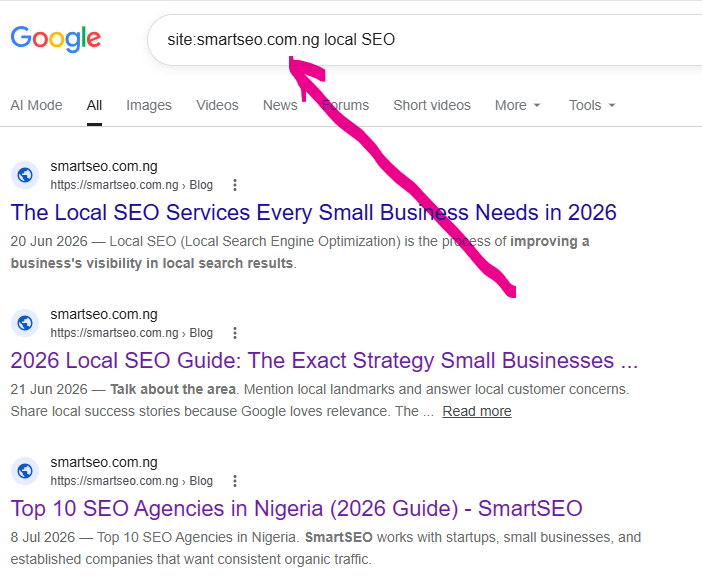
site:smartseo.com.ng local SEO
This tells Google to look for pages about local SEO specifically on SmartSEO’s website as shown bellow.
This technique is particularly useful for SEO professionals conducting content audits or researching competitors.
7. Find Specific File Types
You can also search for specific document formats.
For example:
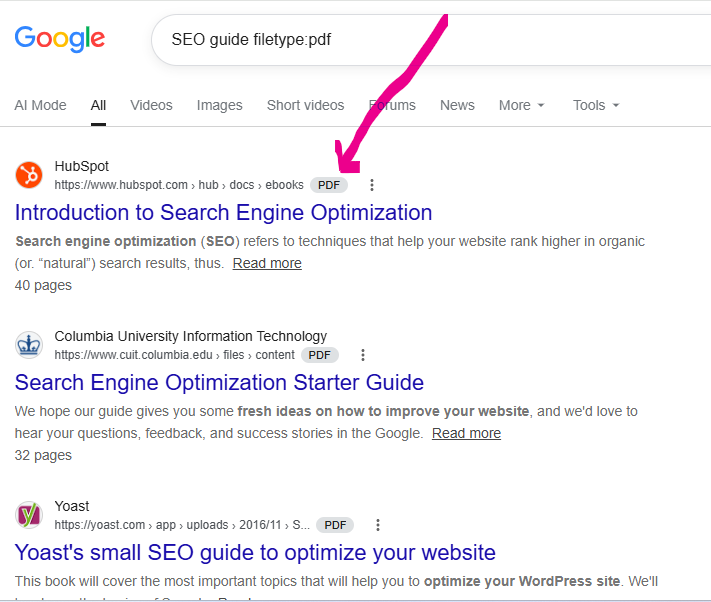
SEO guide filetype:pdf
Google will return PDF documents relevant to your search as you can see on the screenshort bellow.
This can be useful when looking for reports, research papers, guides, and downloadable resources.
How to Change Search Google or Type a URL
If you want to change how searches from Chrome’s address bar work, you can modify your default search engine.
The exact menu wording may vary slightly depending on your Chrome version and device, but the general process is:
- Open Google Chrome.
- Click the three-dot menu in the top-right corner.
- Select Settings.
- Look for Search engine.
- Choose the search engine you want to use.
- Return to the address bar and perform a search.
Depending on your Chrome version, you will be able to select Google, Bing, DuckDuckGo, Yahoo, or another available search provider.
Can you remove the “Search Google or type a URL” text?
The wording is just placeholder text for Chrome’s address bar. It is not a normal website or search query that you need to remove.
When you click the address bar and start typing, the placeholder disappears automatically.
If you’re seeing unusual search behavior, redirects, or a different search engine than expected, check your Chrome search-engine settings and installed extensions.
How to Set Google Search Theme
Another common question is How to set Google search theme?
Google Search offer appearance options that allow users to choose between light, dark, or device-based themes, depending on the Google Search experience and device.
To check your Google Search appearance settings follow this steps:
- Open Google Search.
- Look for the Settings option.
- Open Search settings or the relevant appearance settings.
- Find the Appearance or theme option.
- Choose your preferred setting.
- Save the changes if Google asks you to.
You may see options such as:
- Light theme
- Dark theme
- Device default
The exact options can change as Google updates its interface.
What about a Chrome theme?
A Chrome theme is different from the appearance of Google Search.
Chrome themes changes the appearance of your browser, including colors and the background of certain browser pages.
So if you’re asking “How to set Google search theme?”, first determine whether you want to change:
Google Search’s appearance or the appearance of the Chrome browser itself.
What Is the URL of a Google Search?
A Google search URL generally contains your search query.
For example, a search for:
local SEO tips
It will produce a URL similar to this:
https://www.google.com/search?q=local+SEO+tips
The important part is the /search path and the q= parameter, which represents the search query.
The exact URL contains additional parameters depending on your location, language, settings, and the type of search you’re performing.
You don’t need to manually construct this URL. Simply typing your query into Chrome’s address bar is easier.
What Is Search Google or Type a URL Theme Created By?
Another phrase people sometimes search for is Search Google or type a URL theme created by.
If you’re referring to the visual design or wording of Chrome’s address bar, it is part of the Google Chrome browser interface developed by Google.
The phrase is not a separate website theme that users need to install.
If you are referring specifically to a Chrome theme, however, that’s different. Chrome themes can be created by Google or by third-party theme developers and can change the browser’s colors, background images, and overall appearance.
Search Google or Type a URL vs. Google Search
Although these terms are closely related, they are not exactly the same thing. Lets see some of the difference in this table:
| Feature | Search Google or Type a URL | Google Search |
|---|---|---|
| Where you use it | Chrome address bar | Google Search website |
| Search the web | Yes | Yes |
| Enter website URLs | Yes | Not its primary purpose |
| Perform quick calculations | Yes | Yes |
| Use search operators | Yes | Yes |
| Open websites directly | Yes | Usually requires a click |
| Search suggestions | Yes | Yes |
The biggest advantage of using the Chrome address bar is convenience. You don’t have to navigate to Google before searching.
Why Is It Called the Chrome Omnibox?
The address bar in Chrome is often called the omnibox because it combines many functions in one place.
It is not simply a URL field.
The good thing is that you can use it to:
- Search the web
- Open websites
- Perform calculations
- Search your browsing history
- Find bookmarks
- Use search operators
- Search specific websites
- Access browser functions
That’s why learning how to use the omnibox effectively can make everyday browsing considerably faster.
Advanced Search Google or Type a URL Tricks
If you want to use the address bar like a power user, try these techniques.
Search a Specific Website
Use:
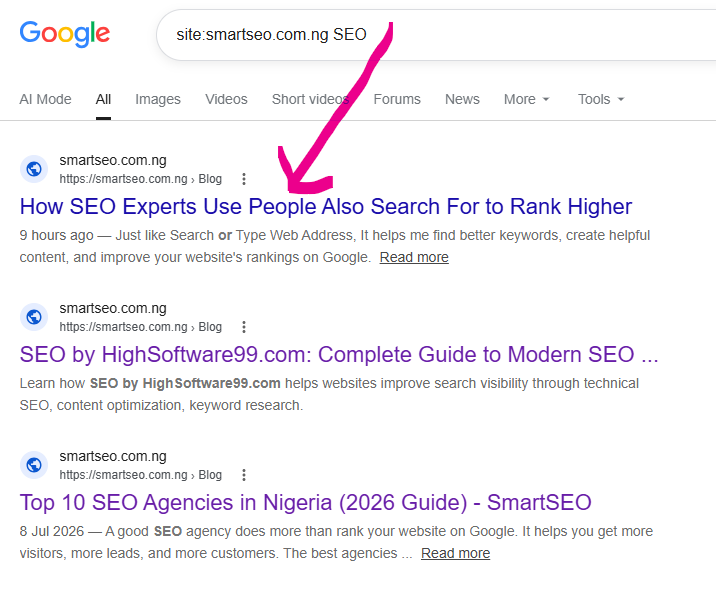
site:example.com keyword
Example:
site:smartseo.com.ng SEO
This searches for SEO-related pages on the specified website as shown bellow.
Exclude a Word
Use the minus sign:
SEO -social
This can tell Google to exclude results associated with the word “social.”
Search Within a Specific URL Structure
You can combine search operators to narrow your research.
For example:
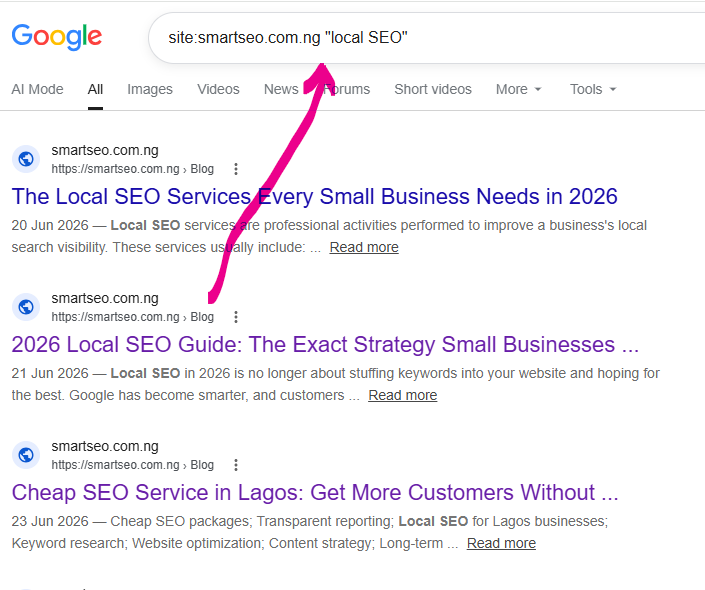
site:smartseo.com.ng "local SEO"
This searches the SmartSEO website for pages containing the phrase “local SEO.” Check the result bellow:
Search for Related Websites
Try:
related:smartseo.com.ng
Google may return websites that it considers related to the domain.
This can be useful when researching competitors, although Google’s availability and behavior for certain search operators can change.
Using Search Google or Type a URL for SEO Research
If you’re an SEO professional, content creator, blogger, or business owner, the Chrome address bar can become a powerful research tool.
For example, suppose you’re writing an article about local SEO.
You could search:
local SEO tips
Then examine Google’s results to understand what type of content currently appears.
You could also search:
“local SEO” “Google Business Profile”
or:
site:smartseo.com.ng “local SEO”
You can then identify:
- Related topics
- Common questions
- Competing pages
- Content gaps
- Search terminology
- Potential internal-link opportunities
For additional keyword research, Google’s People Also Search For feature can be especially useful because it reveals related queries people may explore after their initial search.
I have also covered this topic in more detail in my guide to People Also Search For, which can help you discover related search terms and use them to build better SEO content.
How People Also Search For Can Improve Your Searches
One of the best ways to become better at Google searches is to think beyond your original keyword.
Suppose you search:
search Google or type a URL
Google may surface related questions and searches that reveal what users are trying to understand.
These related searches can help you expand your research.
For example, someone searching for the phrase may also want to know:
- What is search Google or type a URL?
- How do I change my default search engine?
- What is a URL?
- How does Chrome search work?
- How do I change the Google Search theme?
- Why does Chrome say “Search Google or type a URL”?
This is why understanding related searches is valuable for both Google users and SEO professionals.
Common Problems With Search Google or Type a URL
Sometimes users don’t see the expected Google results when they search from Chrome’s address bar.
Here are some common reasons.
Your Default Search Engine Has Changed
If searches are going to Bing, Yahoo, or another search provider unexpectedly, check Chrome’s default search engine settings.
A Browser Extension Is Changing Your Searches
Some extensions can modify search behavior. If your searches are being redirected unexpectedly, review your installed Chrome extensions.
Your Browser Settings Have Changed
Chrome settings can affect how searches and new tabs behave. Review your search engine and startup settings if something doesn’t look right.
You Are Entering a Search Query as a URL
If you enter an incomplete or unusual web address, Chrome may interpret it differently depending on what you’ve typed. When you simply want to search, enter a natural-language query and press Enter.
Frequently Asked Questions
What is Search Google or Type a URL?
Search Google or type a URL is the placeholder text Chrome displays in its address bar. It tells users that they can either enter a search query or type a website address directly.
What is the URL of a Google search?
A typical Google search URL contains google.com/search followed by a query parameter such as q=. For example, a search for “SEO” can have a URL similar to:
https://www.google.com/search?q=SEO
The exact URL can vary depending on Google’s settings and the search being performed.
How do I change Search Google or Type a URL?
You don’t normally change the placeholder itself. If you want to change where Chrome sends your searches, open Chrome’s Settings, find Search engine, and select your preferred search provider.
How do I set Google Search theme?
Open Google Search and look for its appearance or theme settings. Depending on your device and current Google interface, you may be able to choose light, dark, or device-default appearance.
Why does Chrome say Search Google or type a URL?
Chrome displays this message to explain that its address bar can perform two functions: searching the web and navigating directly to a URL.
Can I search Google without opening Google.com?
Yes. Simply type your search query into Chrome’s address bar and press Enter, assuming Google is your selected default search engine.
Can I type a URL into Google Chrome?
Yes. Chrome’s address bar accepts website addresses. Enter the URL and press Enter to navigate to the website.
My Final Thoughts
Search Google or type a URL may look like a simple instruction, but the Chrome address bar is one of the most useful tools in your browser.
Once you understand how it works, you can use it to search Google faster, visit websites directly, perform calculations, research keywords, find pages on specific websites, and conduct more precise searches using Google search operators.
For everyday browsing, remember the basic rule:
Have a question or topic? Search it.
Know the website address? Type the URL.
And if you’re using Google searches for SEO research, don’t stop at your first query. Explore related searches and People Also Search For results to discover additional questions and topics your audience may be interested in. You can learn more about that strategy in our guide to People Also Search For